
How to Photograph Rental Property Damage for Bond Evidence (A Property Manager's Guide)
A practical guide for Australian property managers on photographing rental property damage that holds up as bond evidence at tribunal. Covers camera settings, lighting, angles, timestamps, metadata, the wide-then-close technique, and common mistakes.
Quick Answer
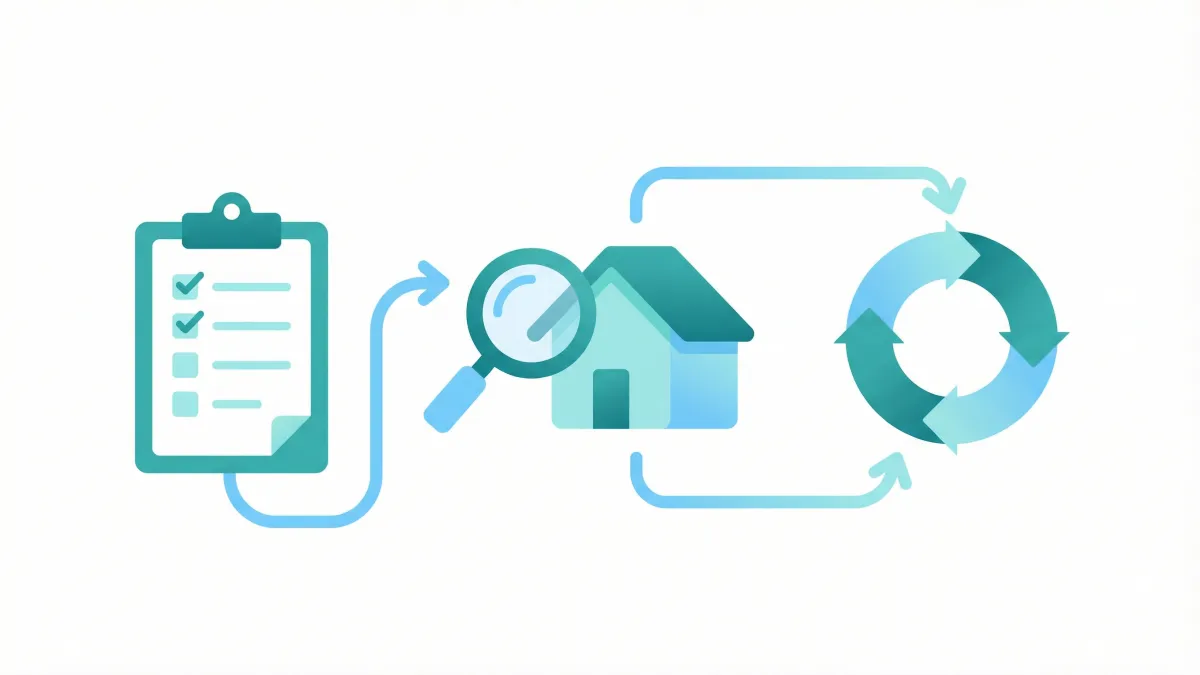
To photograph rental damage for bond evidence: use the wide-then-close technique (a context shot showing the room, then a close-up showing the specific damage), ensure timestamps are enabled on your camera, use your torch for dark areas like oven interiors, and take photos from consistent angles at both entry and exit so the two sets can be compared directly at tribunal.
Why Photo Quality Makes or Breaks Bond Claims
Every property manager knows they need to take photos during condition inspections. Most property managers take photos that are not good enough to support a bond claim at tribunal.
The gap between "I took some photos" and "my photos constitute compelling evidence" is where bond claims are won or lost. Decision-makers across Australia, whether at QCAT, VCAT, NCAT, SACAT, or the Commissioner for Consumer Protection in WA, consistently place the highest weight on photographic evidence when assessing bond disputes. A well-taken photograph is objective, immediate, and hard to argue against. A poorly taken photograph creates doubt, ambiguity, and opportunities for the other party to challenge your claim.
The most common photography failures in condition reports are not about equipment. Modern smartphones take excellent photographs. The failures are about technique: photos that are too far away to show the damage, photos taken in poor lighting that obscure the issue, photos without any context showing which room or surface is being documented, photos that are blurry, and photos that lack timestamps or metadata proving when they were taken.
This guide covers the practical photography techniques that produce bond-claim-ready evidence. Everything here can be done with a standard smartphone. No professional camera equipment is needed.
Equipment: Phone Camera Settings That Matter
Your smartphone is the right tool for condition report photography. Current-generation phones produce images with more than enough resolution and quality for tribunal evidence. However, there are several settings you should check before starting an inspection.
Resolution: Ensure your camera is set to its highest resolution. Most phones default to this, but some have settings that reduce resolution to save storage space. Check your camera settings and ensure you are shooting at full resolution. More pixels means more detail when someone zooms in on your image at tribunal.
Timestamps: This is the single most important setting. Enable the date and time stamp on your photos. On iPhones, the EXIF data (which includes the date, time, and GPS location) is automatically embedded in every photo. On Android phones, EXIF data is also embedded by default. However, some tribunal members prefer a visible timestamp on the image itself. Consider using a timestamp camera app that overlays the date and time directly on the photograph. This makes the timing of the photo immediately visible without requiring anyone to examine the file's metadata.
Location services: Enable location services for your camera app. GPS coordinates embedded in your photos prove the photographs were taken at the property's location, which adds another layer of evidence authenticity.
HDR mode: High Dynamic Range mode captures more detail in both bright and dark areas of a scene. This is particularly useful when photographing rooms with windows (where outside light can blow out the exposure) or rooms with mixed lighting. Most modern phones have HDR enabled by default or use it automatically.
Flash: Set flash to manual control rather than automatic. You want to decide when to use flash based on the lighting conditions, not have the camera decide for you. In most rooms, natural light plus room lighting produces better results than flash, which can create harsh shadows and washed-out areas.
Focus: Tap on the subject you want to be sharp before taking the photo. Smartphone cameras focus on whatever they detect as the main subject, which may not be the specific item you are trying to document. A tap to focus on the crack, stain, or damage ensures it is sharp in the final image.
Storage: Ensure you have sufficient storage on your phone before starting an inspection. A thorough condition report for a three-bedroom house can generate 100 to 200 photographs. Running out of storage mid-inspection is avoidable with a quick check beforehand.
The Wide-Then-Close Technique
The wide-then-close technique is the foundation of effective condition report photography. For every item or area you document, take two types of photos: a wide shot that shows context, and a close-up shot that shows detail.
The wide shot establishes where you are in the property. It shows the full room or the full wall or surface, giving the viewer context. "This is the kitchen" or "this is the north wall of the master bedroom." Without the wide shot, a close-up of a scratch could be from any room, any property, or even a different building entirely.
The close-up shot shows the specific condition you are documenting. It captures the detail that the wide shot cannot: the size of a crack, the colour of a stain, the depth of a scratch, the extent of grease buildup inside an oven. Without the close-up, a wide-angle room shot cannot show whether a faint mark on the wall is a pencil scuff or a deep gouge.
Together, the two shots tell a complete story: here is the room, and here is the specific issue within that room. This pairing is exactly what tribunal members need to assess a bond claim.
For each room, take at least four wide shots from different corners of the room, capturing the full space from each angle. Then take close-up shots of every element you are describing in the condition report: benchtops, floor surfaces, fixtures, fittings, and any marks, damage, or wear.
For specific defects or damage, the sequence is: one wide shot showing the location of the damage within the room, one medium shot showing the general area (for example, the section of wall around a hole), and one or two close-ups showing the damage in detail. This three-level sequence makes it impossible for anyone to question where the damage is or what it looks like.
Lighting: How to Document Damage in Poor Lighting Conditions
Lighting is the most underestimated factor in condition report photography. A photograph taken in poor lighting can make clean surfaces look dirty, hide damage in shadows, or create ambiguity about the actual condition of an item.
Use all available light sources. Turn on every light in the room. Open blinds and curtains to let in natural light. The combination of overhead lighting and natural light usually produces the best results for wide room shots.
Avoid backlit situations. If a room has a large window, do not photograph directly towards it. The camera will expose for the bright window and the room will appear dark. Instead, stand with the window behind you or to the side, so the natural light illuminates the subject rather than the camera lens.
Use your torch for close-ups in dark areas. Inside ovens, under sinks, behind toilets, inside cupboards, and in garages often have poor lighting. Hold your torch (or a colleague's phone torch) to illuminate the area, then photograph it. The torch provides directional light that reveals texture, marks, and buildup that overhead lighting can miss.
Be careful with flash. Direct flash from a smartphone can create harsh, flat lighting that washes out details and creates reflective glare on glossy surfaces like tiles, glass, and polished benchtops. Use flash as a last resort, and when you do, try angling the phone slightly to reduce direct reflections.
For stains and marks on light-coloured surfaces, try photographing from an angle rather than straight on. A water stain on a white ceiling may be invisible in a photo taken from directly below, but clearly visible when photographed from an angle that catches the change in surface texture.
For mould on walls and ceilings, get close and use sidelighting (your torch held at an angle to the surface). Mould that appears as a faint discolouration in a wide room shot can look dramatic and clearly defined in a close-up with angled lighting.
If a room is genuinely too dark to photograph well (for example, a garage with no light fitting), note this in your condition report and take the best photos you can with torch illumination. A less-than-perfect photo with a note about lighting conditions is better than no photo at all.
What to Photograph in Every Room
This is the minimum evidence set for each room in a property. These shots should be taken at both entry and exit inspections.
Every room: Four wide shots from each corner of the room. Close-ups of walls (each wall), ceiling, floor, door (both sides), door handle and lock, window (including frame, lock, sill, and flyscreen), light fitting, power points, and any switches.
Kitchen (additional): Inside the oven (all interior surfaces and door glass from inside), oven racks pulled out, rangehood filter (remove and photograph both sides), cooktop surface, inside every cupboard and drawer, sink and tapware, splashback, benchtop surface, dishwasher interior, fridge space (walls and floor behind the fridge).
Bathroom (additional): Inside the shower (walls, floor, drain, screen or curtain, showerhead), bathtub interior, toilet (bowl, behind toilet, base where it meets the floor), vanity interior, mirror, exhaust fan, grouting condition (close-up of several grout sections), caulking around shower base and vanity.
Bedrooms (additional): Inside each built-in wardrobe (shelves, rail, floor, tracks if sliding doors), carpet close-ups in high-traffic areas and doorways.
Laundry (additional): Tub interior, taps, floor (especially near washing machine connection), any cabinets.
Outdoors: Front and back of the property from multiple angles, lawn condition, garden beds, fence (each section), gate latches, driveway surface, letterbox, clothesline, garage floor, hot water system, air conditioning external unit.
This list produces a large number of photographs. For a three-bedroom house, expect to take between 100 and 200 photos for a thorough entry or exit report. Modern phones have ample storage for this, and the cost of having too many photos is zero, while the cost of a missing photo during a bond dispute can be hundreds or thousands of dollars.
Metadata and Timestamps: Why They Matter at Tribunal
Every digital photograph contains metadata, technically called EXIF data, that records information about when and where the photo was taken. This metadata is often the invisible evidence that makes or breaks the credibility of your photographic record.
Date and time: The EXIF data records the exact date and time each photo was taken, based on your phone's clock. This proves that the photos were taken during the inspection, not days or weeks later. Tribunal members and adjudicators routinely check photo timestamps to verify that the evidence was collected at the claimed time.
GPS coordinates: If location services are enabled, the photo's EXIF data includes the GPS coordinates where it was taken. This proves the photos were taken at the property's location, not at a different property or in your office.
Device information: The EXIF data records which device took the photo (make, model, software version). This is generally less important but adds to the overall credibility of the evidence.
Ensure your phone's date, time, and time zone are set correctly and ideally synced automatically with your carrier. If your phone's clock is wrong, every timestamp in your photos will be wrong, potentially undermining your entire evidence set.
Do not edit photos in ways that strip metadata. Some image editing tools and social media sharing platforms remove EXIF data. If you need to crop or annotate a photo, use a tool that preserves the original metadata, or keep the original unedited version alongside any edited versions.
For additional credibility, consider using a timestamp camera app that overlays the date, time, and location as visible text directly on the photograph. While the EXIF data is embedded and can be checked, a visible timestamp on the face of the photo is immediately apparent to anyone viewing it and does not require technical knowledge to verify.
Some property management software and condition report apps automatically preserve and display photo metadata within the report. This integration means the timestamp evidence is built into the report itself rather than existing only in the photo files.
Organising Photos: Naming Conventions and Folder Structure
Taking excellent photographs is only half the job. If you cannot find the right photo when you need it, or if your photos are not clearly linked to specific rooms and items, their value as evidence diminishes significantly.
If you are using a dedicated condition report app, your photos are automatically organised by room and item within the report. This is one of the strongest advantages of digital tools: the photo of the oven interior is automatically linked to the kitchen section of the report, with no manual filing required.
If you are managing photos manually (whether for paper-based reports or as a supplementary evidence set), adopt a consistent naming convention and folder structure.
Folder structure: Create a top-level folder for each property (use the address). Within that, create subfolders for entry and exit inspections, dated with the inspection date. Within each inspection folder, create subfolders for each room.
Example:
42 Smith Street Fortitude Valley / 2026-01-15 Entry / 01 Exterior / 02 Kitchen / 03 Lounge / 04 Bedroom 1 / 05 Bedroom 2 / 06 Bedroom 3 / 07 Bathroom / 08 Laundry / 09 Garage / 10 Backyard / 2026-12-20 Exit / (same structure)
File naming: If your photos need to be sorted or referenced individually, rename them using a convention like: room number, item, and type. For example: "02-kitchen-oven-interior-wide.jpg" and "02-kitchen-oven-interior-closeup.jpg." This makes it immediately clear what each photo shows without opening it.
Backup: Store photos in at least two locations. Your phone, plus a cloud storage service like Google Drive, Dropbox, or OneDrive. If your phone is lost, damaged, or replaced, you need those photos to be accessible. Tenancies can last years, and you may need photos from an entry inspection conducted three or four years earlier.
Do not delete entry photos after the tenant has signed the condition report. You will need them for the full duration of the tenancy and potentially for months or years afterward if a bond dispute goes to tribunal.
Common Photography Mistakes That Weaken Bond Claims
These are the photography mistakes that most frequently undermine bond claims at tribunals across Australia.
Taking only wide-angle room shots. A photo of an entire kitchen from the doorway does not show whether the oven is clean, whether there are scratches on the benchtop, or whether the grout is mouldy. Wide shots establish context; close-ups provide evidence. You need both.
Blurry photos. If the photo is not sharp, it is not evidence. Check each photo immediately after taking it. If it is blurry, take it again. This takes seconds and prevents the common situation of arriving at tribunal with a blurry photo of the one item that is in dispute.
Inconsistent angles between entry and exit. If your entry photo of the lounge room was taken from the north-east corner, your exit photo should be taken from the same position. Inconsistent angles make comparison difficult and give the other party grounds to argue that the photos do not show the same thing.
No reference object for scale. A close-up photo of a hole in a wall does not convey its size. Place a coin, a ruler, or even a pen beside the damage to provide scale. "A hole approximately 40mm in diameter" in your condition report is powerful when supported by a photo showing the hole next to a 20-cent coin.
Photographing clean surfaces at exit but not at entry. If you only photograph damage and mess at exit but did not photograph the same surfaces when they were clean at entry, you have no comparative evidence. A photo of a dirty oven at exit proves the oven was dirty at exit. It does not prove the oven was clean at entry. You need both.
Relying on photos alone without written descriptions. Photos show what something looks like; descriptions provide specifics that photos may not fully capture (material type, colour names, measurements, whether something functions). Photos and descriptions are complementary, not substitutes for each other.
Editing photos after the inspection. Cropping a photo to focus on damage is fine. Adjusting brightness or contrast to make damage more visible is questionable. Adding annotations, arrows, or text to photos changes them from evidence into arguments. If you need to annotate, do so on a copy and retain the unedited original.
Entry vs Exit: Matching Your Photo Angles for Comparison
The most powerful use of condition report photography is the direct comparison between entry and exit. When you can place two photos side by side — same room, same angle, same lighting — and the difference in condition is immediately visible, you have evidence that requires no explanation.
Achieving this requires discipline at entry. When you photograph the property at the start of a tenancy, think about how your exit photos will need to match. Stand in consistent positions. Use the same corners of each room as your wide-shot positions. Photograph fixtures and surfaces from the same angle and distance.
Some property managers mark their wide-shot positions on the floor plan for each property, ensuring that whoever conducts the exit inspection can stand in the same spot. This level of consistency is not always practical, but the principle matters: the closer your exit photos match your entry photos in angle and framing, the stronger your comparison evidence.
For specific items that commonly attract bond claims (ovens, carpet, walls, bathroom grout), develop a standard set of angles that you use at every property. Always photograph the oven interior from the same position (door open, camera aimed at the back wall). Always photograph carpet from the same height (standing, aiming at the floor near the doorway). Consistency makes comparison automatic.
When assembling your evidence for a bond claim, present entry and exit photos in pairs. Left column: entry. Right column: exit. Same room, same angle. This layout makes the tribunal member's job easy, and making their job easy works in your favour. An adjudicator who can immediately see the difference in condition is more likely to accept your claim than one who has to search through a pile of unmatched photos trying to figure out which entry photo corresponds to which exit photo.
If you did not take entry photos that match your exit angles (perhaps you are working with an entry report from a previous property manager), do the best you can. Annotate your evidence to explain which entry and exit photos correspond, even if the angles are not identical. Some comparison is better than none.
How ConditionHQ Handles Photo Evidence
ConditionHQ was designed with photo evidence as a core feature, not an afterthought. The app addresses the most common photography failures that undermine bond claims.
Photos are captured within the app and automatically linked to the specific room and item being documented. There is no manual filing, renaming, or organising. The kitchen oven photo lives in the kitchen section of the report, paired with the AI-generated description of the oven's condition.
Timestamps are preserved automatically. Every photo retains its EXIF data (date, time, GPS coordinates), and the visible timestamp is displayed within the report. This means your evidence has both embedded metadata and a human-readable timestamp, satisfying both technical and practical evidence standards.
The AI description feature generates detailed, objective descriptions from your photographs. Instead of typing "oven — dirty" while standing in front of the oven, you photograph it and the AI generates a specific description like "oven interior — moderate grease buildup on back wall and both side walls, light residue on base, racks with baked-on residue on crossbars, door glass has grease film on interior surface." You review, adjust if needed, and move on.
At exit, the comparison feature automatically pairs entry and exit photos for each room and item, presenting them side by side with their descriptions. This is the same entry-exit pairing that tribunal members find most compelling, generated automatically from your two reports.
ConditionHQ offers a free tier with one report per month. The Pro plan at $59 per month and Agency plan at $149 per month provide unlimited reports and the full comparison toolkit.
Frequently Asked Questions
Try ConditionHQ Free
Create 1 free condition report per month at no cost. All 8 Australian states supported.
Related Articles
Property Condition Report Templates Australia: State-by-State Guide (2026)
10 min read read
Short-Term Rental Condition Reports in Australia: What Property Managers Actually Need
10 min read read
When Does a Lease Renewal Require a New Condition Report? A State-by-State Guide
9 min read read